


.webp)

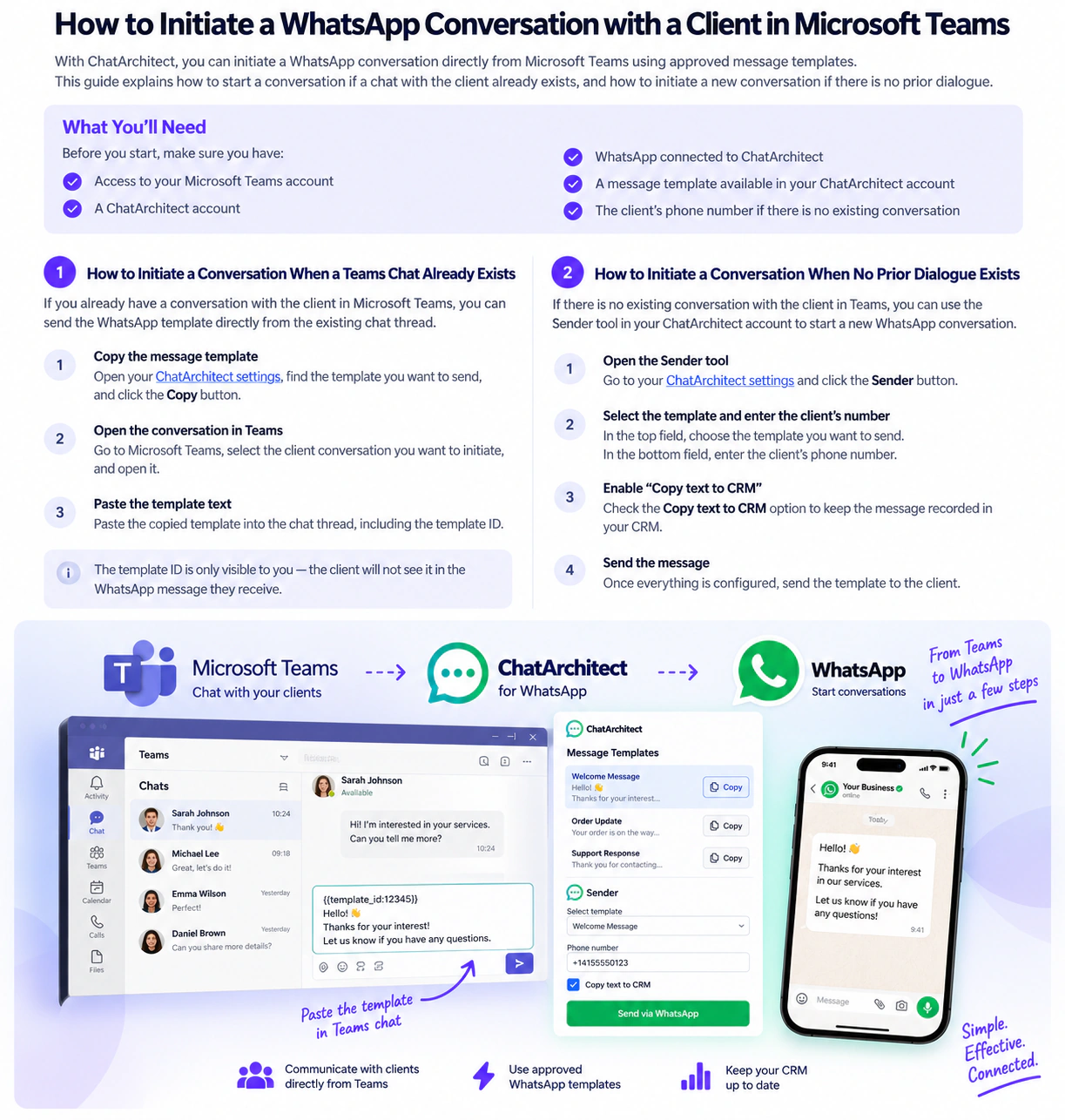
With ChatArchitect, you can initiate WhatsApp conversations while working in Microsoft Teams, making it easier to communicate with clients without disrupting your existing workflow.
The process depends on whether a conversation with the client already exists in Microsoft Teams. If there is an existing conversation, you can use a WhatsApp message template directly from the chat. If there is no previous dialogue, you can start a new conversation using the Sender tool in ChatArchitect.
In this guide, we’ll walk through both methods step by step.
What You’ll Need
Before getting started, make sure you have:
- Access to your Microsoft Teams account
- A ChatArchitect account
- WhatsApp connected to ChatArchitect
- A message template available in your ChatArchitect account
- The client’s phone number if there is no existing conversation
Once everything is ready, choose the method that matches your situation.
How to Initiate a Conversation When a Teams Chat Already Exists
If you already have a conversation with the client in Microsoft Teams, you can initiate the WhatsApp dialogue directly from the existing chat thread.
Step 1: Copy the Message Template
Open your ChatArchitect settings:
Find the WhatsApp message template you want to send and click:
Copy
This copies the template text together with the information required by ChatArchitect to process the message.
Step 2: Open the Client Conversation in Microsoft Teams
Go to Microsoft Teams and find the conversation with the client you want to contact.
Open the chat and paste the copied template into the conversation.
Make sure you paste the complete template text, including the template ID.
The ID is required for processing the message, but it is only visible to you. The client will not see the template ID in the WhatsApp message they receive.
Once the template is submitted, ChatArchitect can process it and deliver the message to the client through WhatsApp.
How to Initiate a Conversation When No Previous Dialogue Exists
If there is no existing conversation with the client, you can initiate a new WhatsApp dialogue using the Sender feature in ChatArchitect.
Step 1: Open the Sender Tool
Go to your ChatArchitect settings:
Click the:
Sender
button.
This opens the interface for sending a WhatsApp template to a new recipient.
Step 2: Select Your Message Template
In the top field, select the WhatsApp template you want to send.
Choose the appropriate template based on the purpose of your communication.
For example, this could be a welcome message, appointment reminder, order update, follow-up message, or another template available in your account.
Step 3: Enter the Client’s Phone Number
In the bottom field, enter the phone number of the client you want to contact.
Double-check the number before sending the message to make sure it is associated with the correct recipient.
Step 4: Enable “Copy Text to CRM”
Before sending the message, enable the:
Copy text to CRM
option.
This allows the message text to be copied to your CRM so that your communication history stays available within your existing workflow.
Once the template, recipient number, and CRM option are configured, you can proceed with sending the WhatsApp message.
Which Method Should You Use?
If a conversation with the client already exists in Microsoft Teams, the workflow is:
Open ChatArchitect → Copy the template → Open the Teams conversation → Paste the complete template → Send
If there is no previous dialogue with the client:
Open ChatArchitect → Sender → Select a template → Enter the client’s phone number → Enable “Copy text to CRM” → Send
The main difference is whether an existing client conversation is already available in Microsoft Teams.
Connect Microsoft Teams with Your WhatsApp Communication
Using Microsoft Teams, ChatArchitect, and WhatsApp together gives your team a convenient way to initiate customer conversations while keeping communication connected to your existing workflow.
For existing conversations, team members can quickly copy an approved template and send it from the relevant Microsoft Teams chat. When contacting a new client, the ChatArchitect Sender tool provides a straightforward way to select a template, enter the recipient’s phone number, and initiate the WhatsApp conversation.
This setup helps teams manage client communication across Microsoft Teams and WhatsApp while keeping important messaging activity connected to the CRM.


